> For the complete documentation index, see [llms.txt](https://wpcloudplugins.gitbook.io/docs/llms.txt). Markdown versions of documentation pages are available by appending `.md` to page URLs; this page is available as [Markdown](https://wpcloudplugins.gitbook.io/docs/readme/how-to-update.md).
# How to Update?
When new versions are available (and your site meets the minimal requirements) updates will automatically show up on the default WordPress update page in the Administrator Dashboard \[Dashboard] -> \[Updates].
{% hint style="info" %}
If you’re sure there’s a new version available but don’t see the update, try clicking the **"Check Again"** button to refresh and manually check for updates.
{% endhint %}
{% hint style="success" %}
Updates are rolled out gradually to ensure a smooth and seamless experience for all users.
{% endhint %}
\
If you want WordPress to always update the plugin fully automatically once a new version becomes available navigate to Plugins Screen. For each plugin, there is an “Automatic update” column with an action link used to enable/disable auto-updates plugin by plugin.
Click on the 'Enable auto-updates' link to enable auto-updates for each specific plugin.
### Update the plugin manually
If you have trouble updating the plugin via the auto-updater (some multisite setups have issues), you can always download the latest plugin package directly and install it manually.
{% hint style="warning" %}
**Do not deactivate/uninstall the current version**. WordPress will replace it automatically with the new one. If you want to uninstall the current version first, please make sure that you disable the `Delete settings on Uninstall` setting on the `Advanced` tab of the plugin settings.
{% endhint %}
The download location depends on where you purchased the plugin:
**Freemius customers**
1. Log in to your [Freemius account](https://users.freemius.com)
2. Find your active license for the plugin in your account dashboard
3. Click the download link to get the latest plugin ZIP
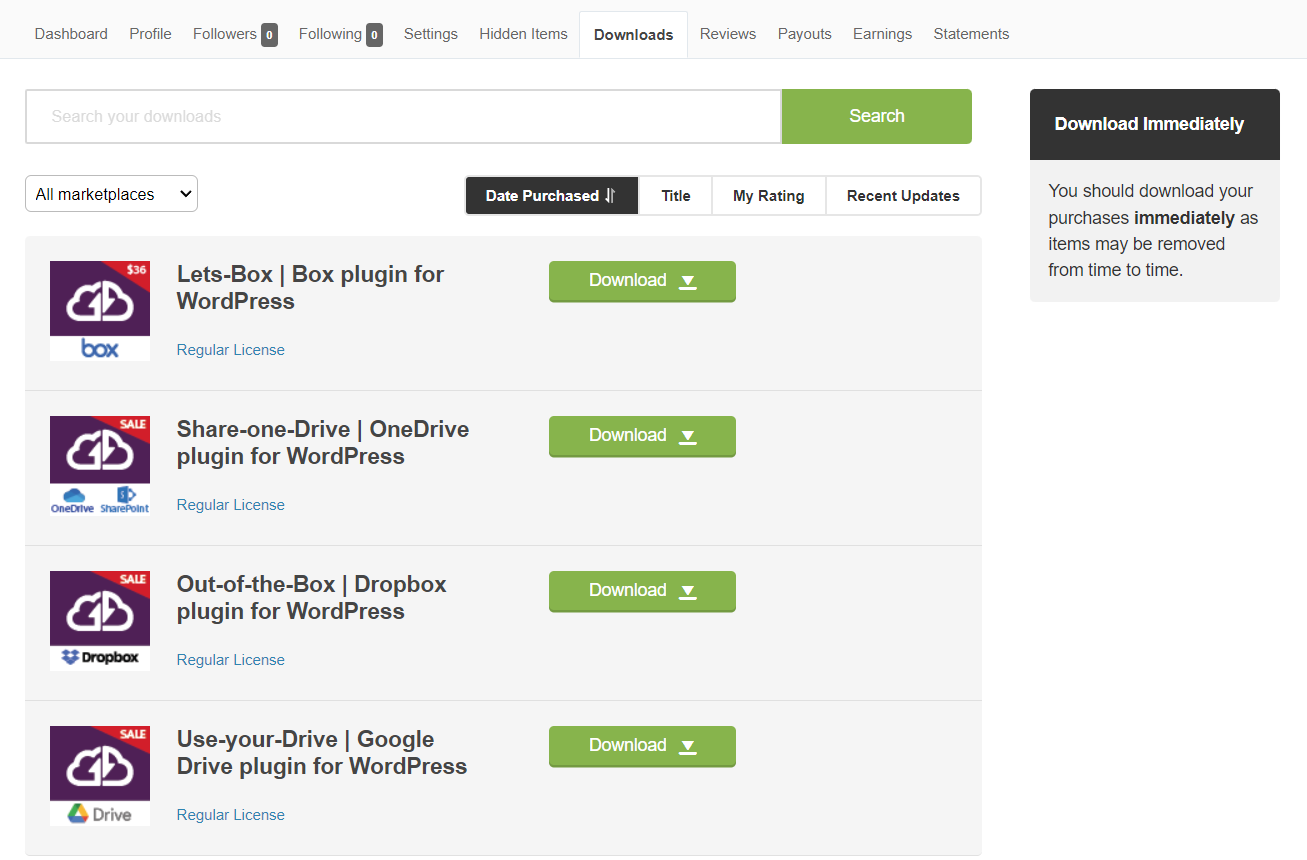
**CodeCanyon customers**
1. Log in to your [CodeCanyon account](https://codecanyon.net/sign_in)
2. Go to the **Downloads** section via the Account menu
3. Download the plugin ZIP for your purchase
**Installing the ZIP package**
Once you have the ZIP, install it in your WordPress Admin Dashboard via `Plugins -> Add New -> Upload Plugin`. Select the ZIP package and press `Install Now`.
{% hint style="warning" %}
Download the plugin from the same channel where you purchased it. If you bought directly, use Freemius. If you bought via CodeCanyon, use CodeCanyon. The two builds use different licensing systems and aren't interchangeable.
{% endhint %}
